TESTS & SURVEYS
Polls & Surveys
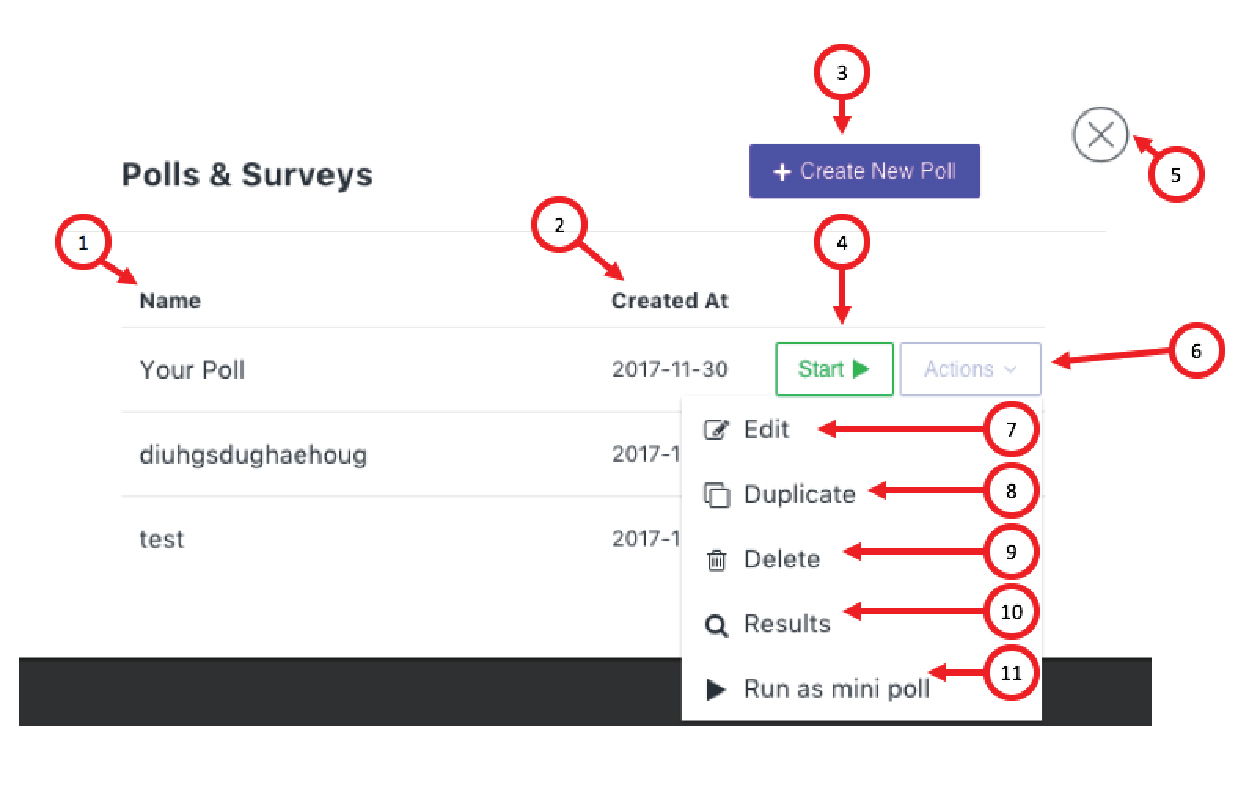
1. Name - here you will find a list of the polls which you created earlier
2. Created At - here you will find a date when you created certain poll/survey
3. Create New Poll – when clicking on this button you will start
creating new poll (see Error! Reference source not found.)
4. Start - when clicking this button, you will start the poll for the participants in your room
5. Close - clicking this button will close the Polls&
Surveys menu
6. Actions - clicking this button will open a dropdown menu
7. Edit - you can edit poll/survey
8. Duplicate - you can duplicate poll/survey
9. Delete - you can delete the poll/survey you don’t need
anymore
10. Results - here you will find the votes of the participants
11. Run a mini poll – this will open a poll in the window below the chat (see
Create New Poll
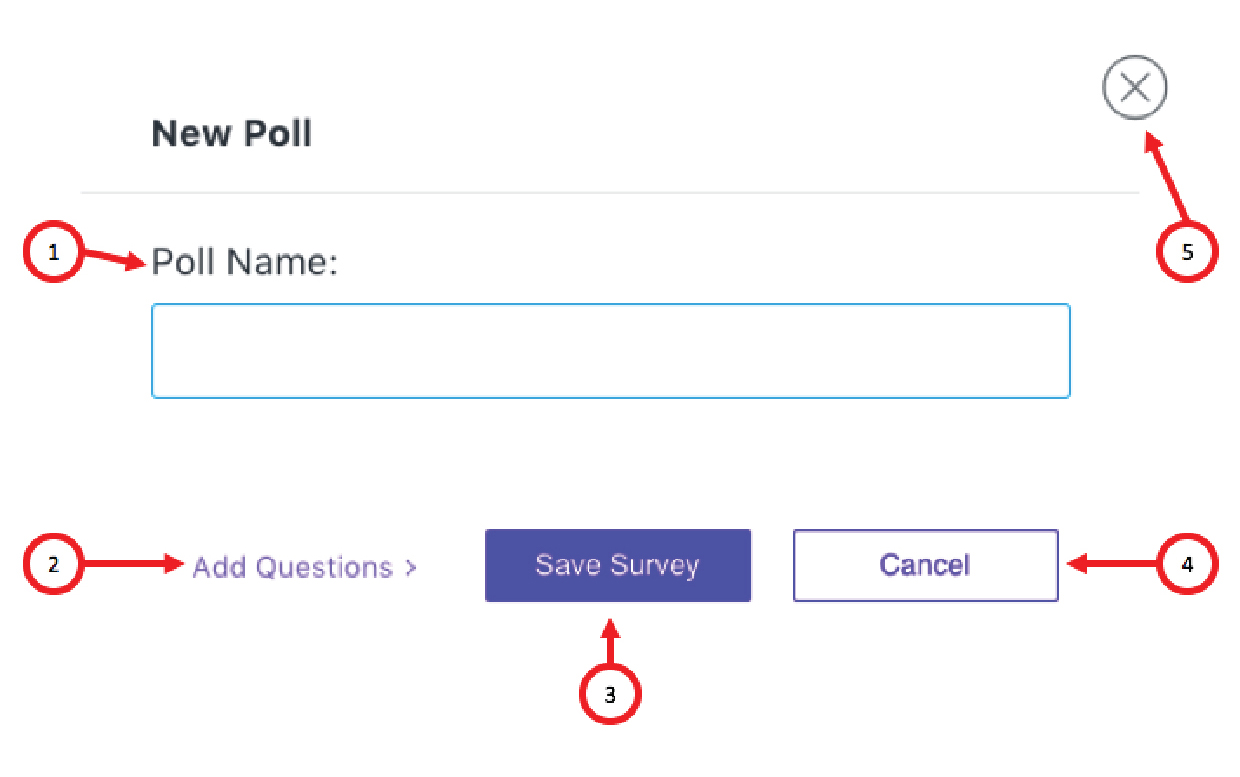
1. Poll Name - here you add name of your poll/survey
2. Add Questions - here you are adding questions to poll/survey (see Error! Reference source not found.)
3. Save Survey - this button directs you to add Questions Menu
4.
Cancel - If you don’t want to create poll click this button
5. Close - If you don’t want to create poll click this button
Add Questions Menu
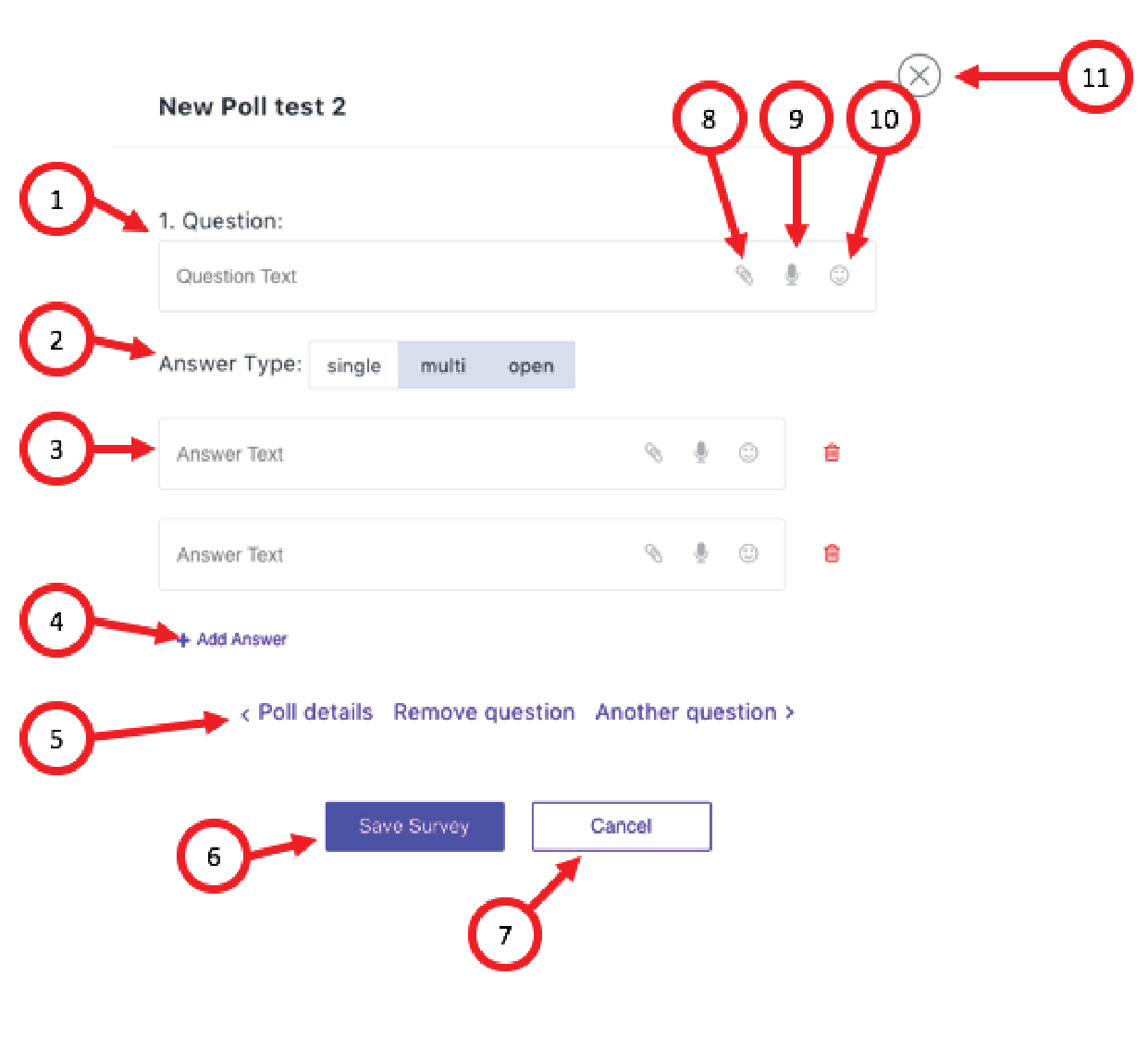
1. Question - you add your question here
2. Answer type - you can choose from three kinds of answers. “Single” - means that the attendee can choose only one answer. “Multi” - means that attendee can choose few answers to
one question. “Open” - means that the attendee needs to give his/her answer.
3. Answer Text - you add possible answers to your questions here
4. Add answer - if you need more than two answers please click this button
to add another answer
5. Poll Details - give you the poll info. Remove question – delete the question you don’t need. Another question - adds another question to your poll/survey
6. Save Survey
7. Cancel - if you
don’t want to create poll click on this button
8. Add file question - you can also add file answer
9. Audio file question - you can also add audio file answer
10. Emoticons – you can use emoticons in your questions
and answers
11. Close
Mini Poll Window
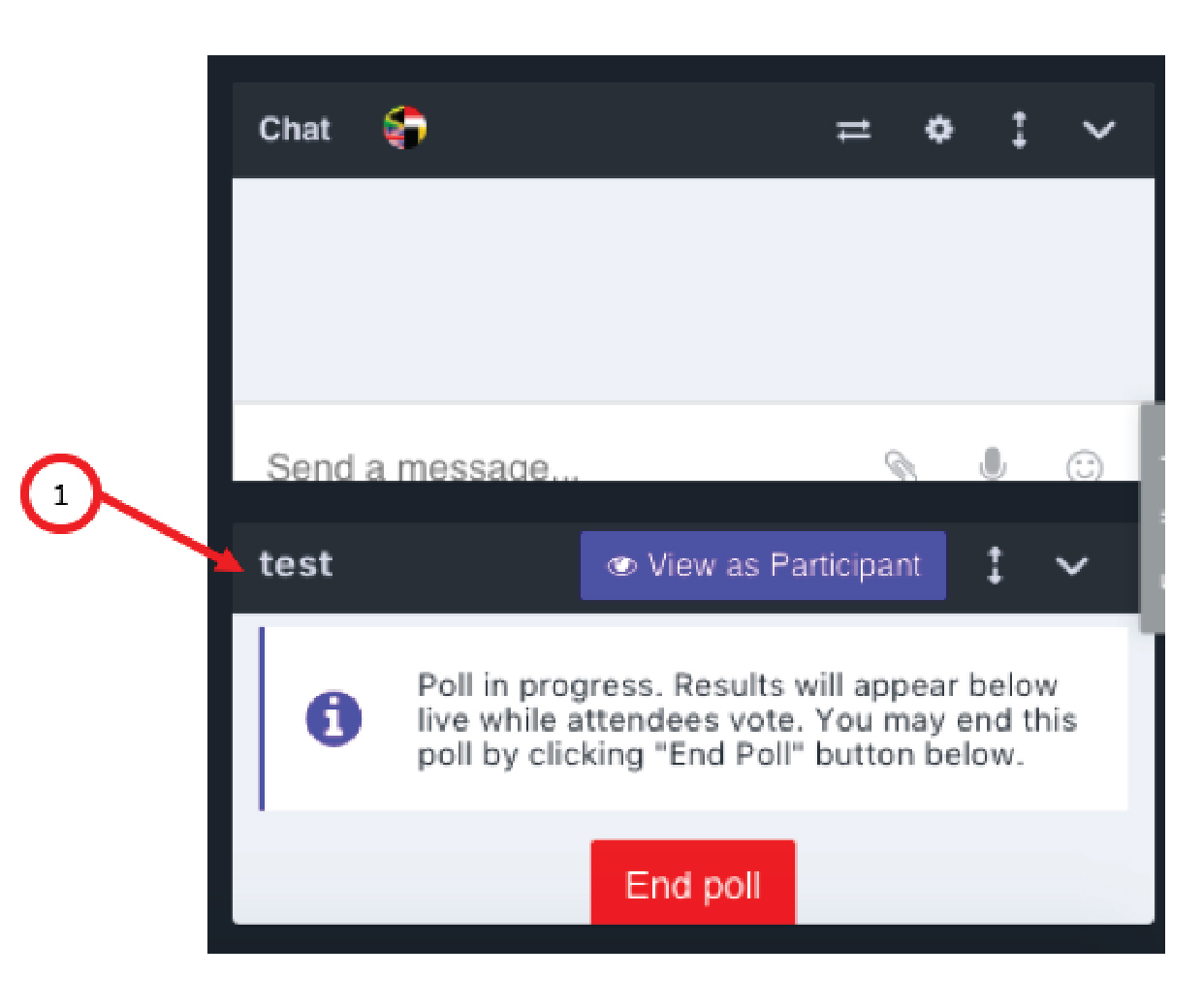
1. Mini Poll window under the Chat window
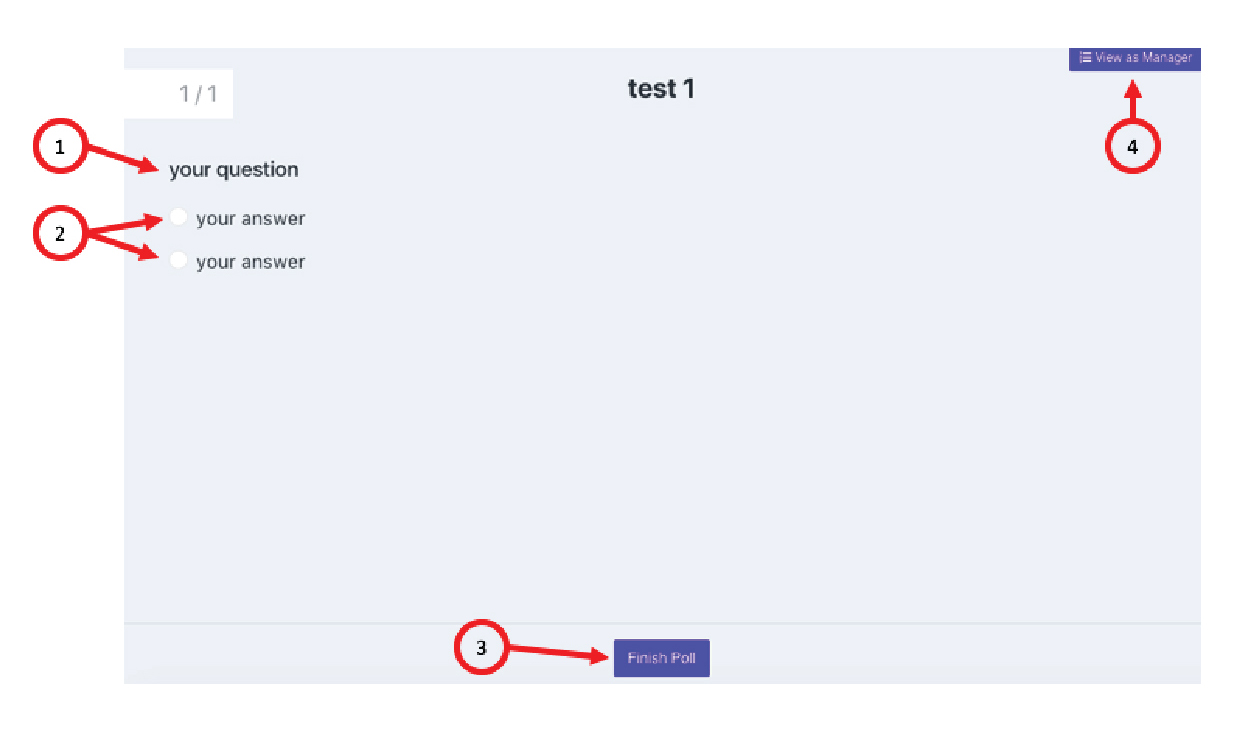
Poll window – participant view
1. Question
2. Answers
3. Finish poll - when you answered all the questions you click it
4. View as Manager - when you are a Host or Presenter who started the poll you can also view it as its manager